 Omni Regatta · Help
Organizer guide
From creating the club account to publishing results. Everything happens in the browser at regatta.osgps.pl, most comfortably on a computer.
1. Organizer account
Sign-up
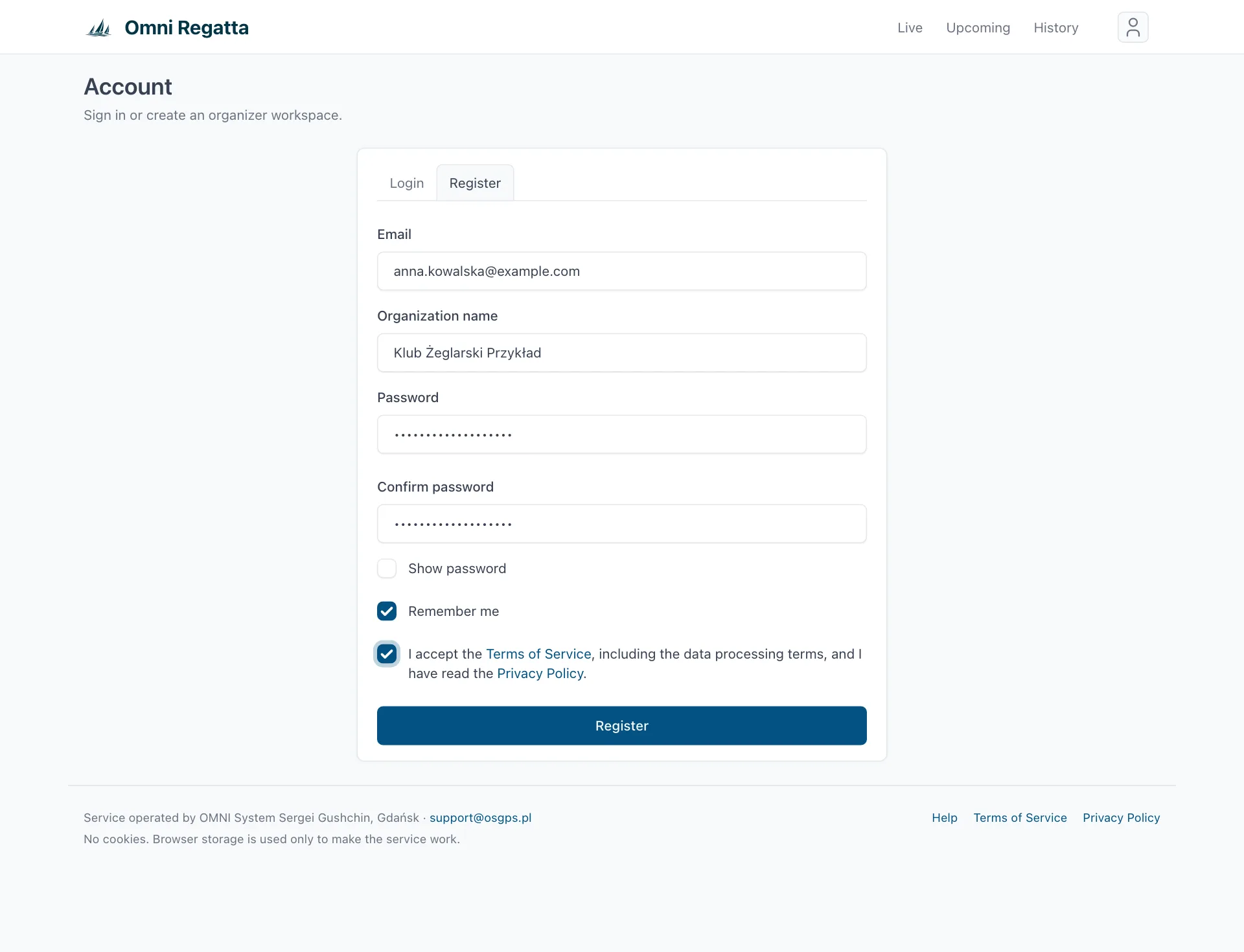
- Open regatta.osgps.pl → Register (the person icon at the top right, Register tab).
- Enter your email, an Organization name (club, sailing school, association; your events are listed under it) and your password twice.
- Accept the Terms of Service and click Register.
- Open the email “Confirm your Omni Regatta email” and click Confirm email. The link is valid for 24 hours. Clicking it signs you in.
No email? Check your spam folder. If the link has expired, sign in. You'll be asked to confirm your address and can request a new link (Send a new confirmation link).
Signing in and passwords
Sign in on the Login tab. If you forget your password, use Forgot password? and we'll email you a reset link. You can also change the password in your Profile (person icon → Profile), which is also where you set the interface language, default map and units, or delete your account.
New account limits
A new organization can create up to 3 events and add up to 5 participants in total, free of charge. If you need more, write to support@osgps.pl.
2. Workspace
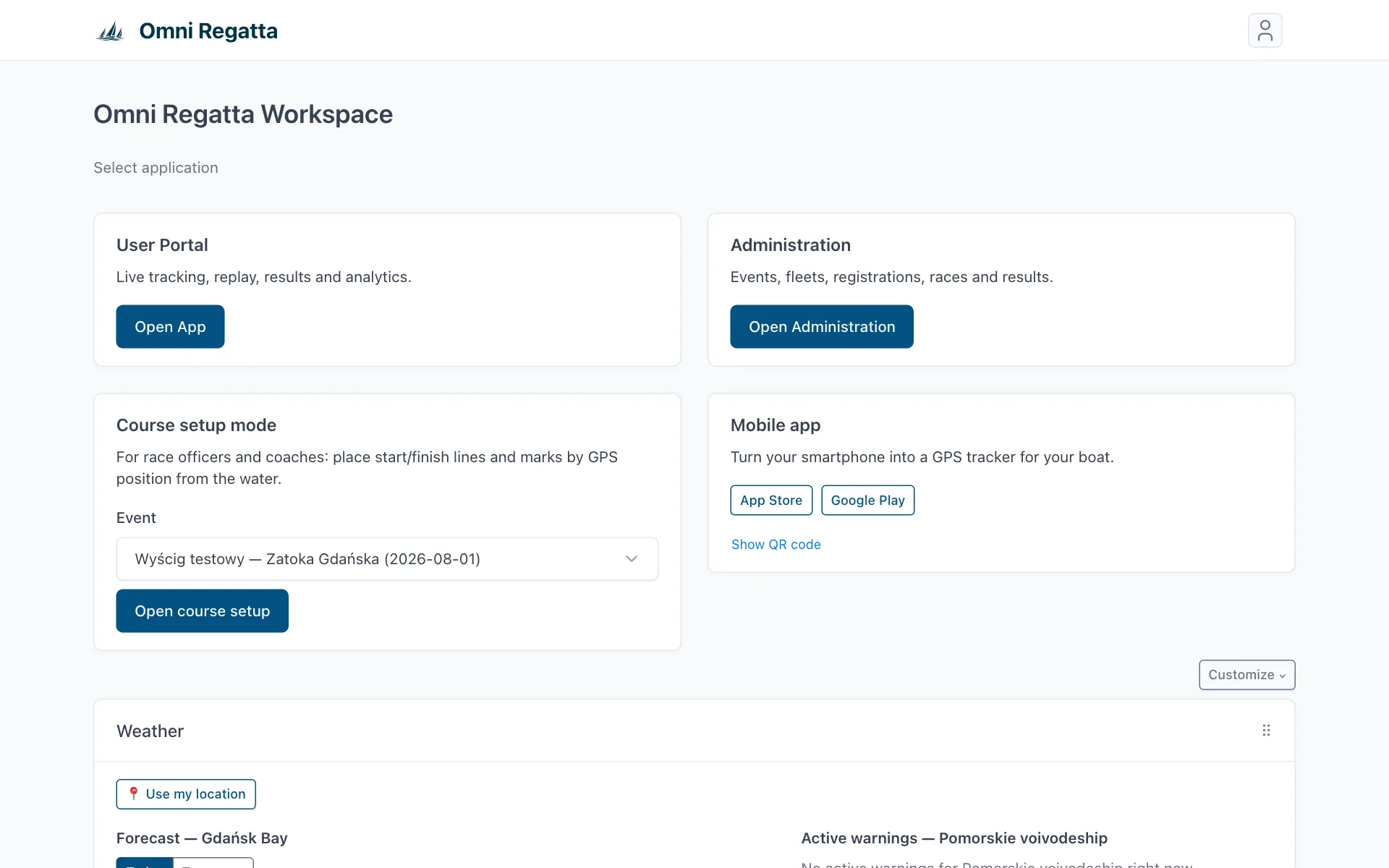
After signing in you land in the Workspace, the organizer's home page:
- User Portal: the public view: events, live map, replay, results.
- Administration: where you manage events. Most of the work happens here.
- Course setup mode: a version for the race officer on the water, used to place marks at the phone's GPS position (see Course).
- Mobile app: links and a QR code for Race Recorder, handy to show to crews.
- Widgets: weather and IMGW warnings, sea conditions (IMGW marine wind warnings for your sea area, coastal-zone and storm-surge warnings), sea level and water temperature at nearby gauges, daylight (sunrise, sunset, civil dusk), a reminder to check closed sea zones with a link to current BHMW navigational warnings, live event status, tracker health, next start. The marine widgets follow the location chosen in the weather widget. Each widget is a row with a one-line summary; click it to expand the details. Drag a row by its ⠿ handle to change the order; Customize hides or shows widgets.
3. Quick race or regatta
When you create an event you choose one of two modes:
| Quick race | Regatta | |
|---|---|---|
| For | A passage, club race, record attempt or training session: one course, one list of boats. | A regatta with classes, start groups and several races. |
| How boats join | One QR code for the whole event, in the Race Recorder app. | A separate QR code per start group. You can also add boats by hand and assign hardware trackers. |
| Event menu | Course, Participants, Replay, Statistics, Diagnostics. | Also Event classes, Start groups, Fleets, Registrations, Races, Results. |
| Setup time | A few minutes. | A quarter of an hour to an hour, depending on the number of classes and races. |
The mode can't be changed after the event is created. If unsure, start with a quick race: it covers most passages and club races.
4. Creating an event
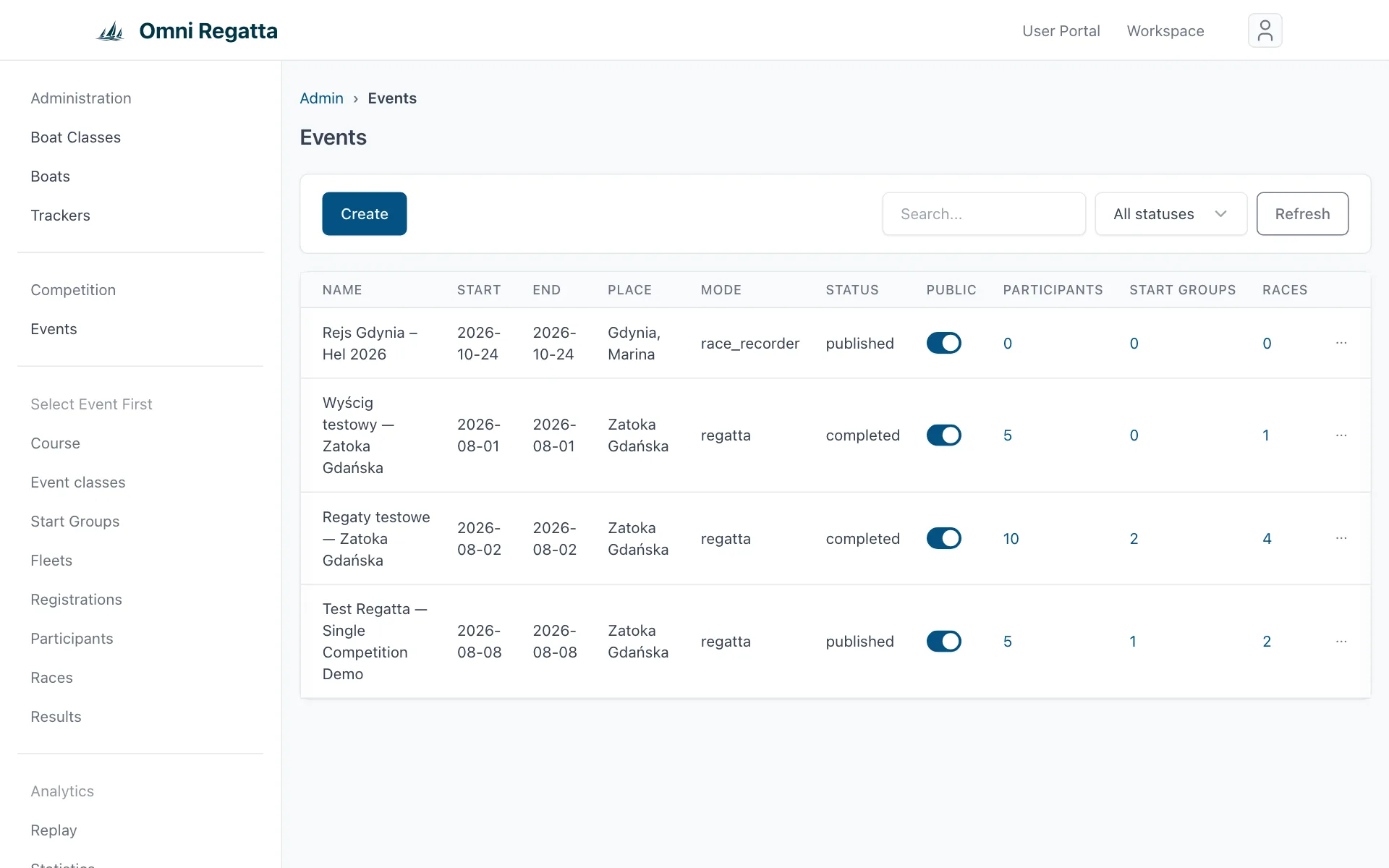
- In the Workspace click Open Administration, then Events in the left menu.
- Click Create and fill in the form (fields below).
- Click Save. The new event's dashboard opens.
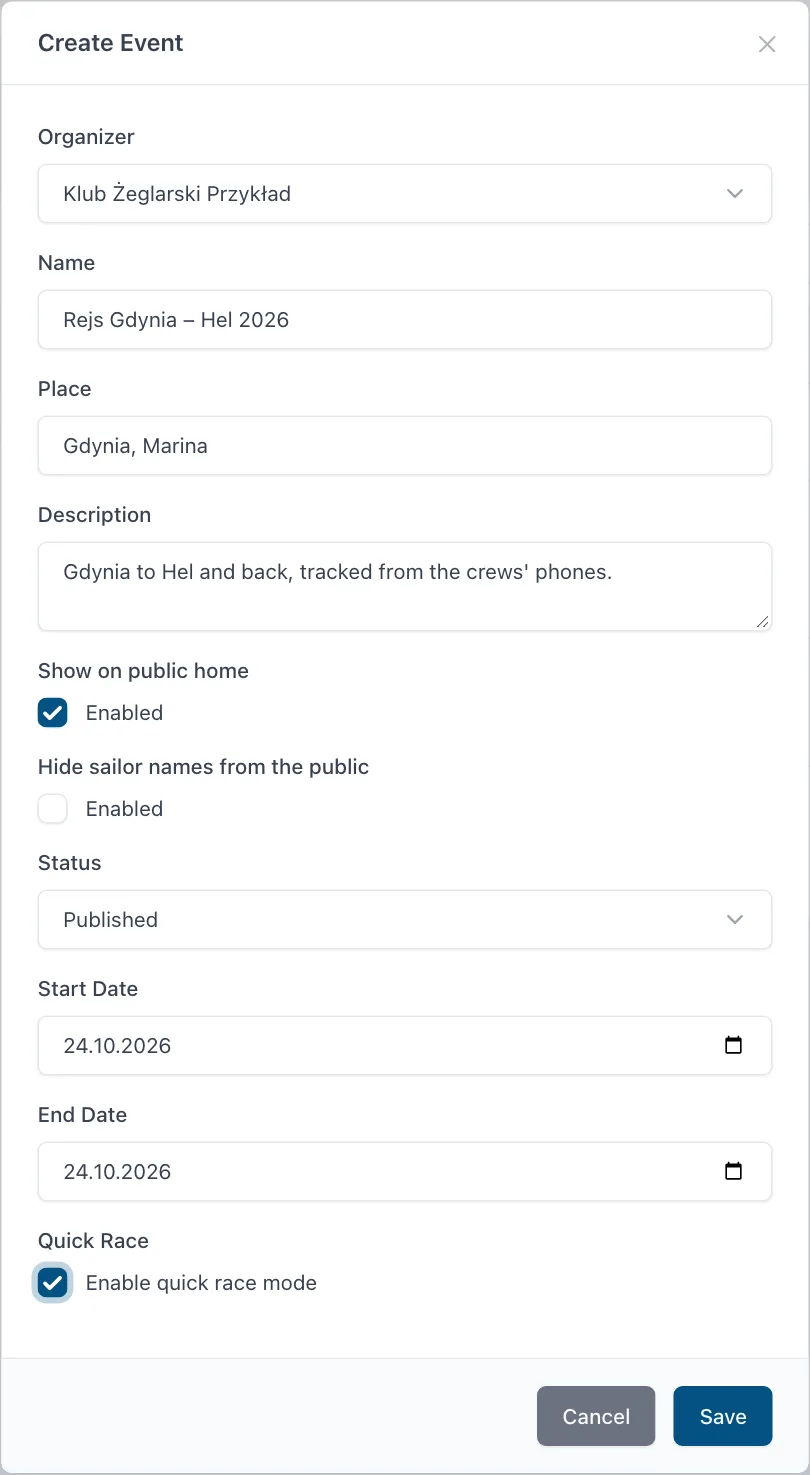
- Organizer
- Your organization. If you belong to several, pick the right one.
- Name, Place, Description
- Shown on the public event page.
- Show on public home
- Lists the event among public regattas. Needs a status other than Draft.
- Hide sailor names from the public
- Spectators only see boat names and sail numbers. Recommended for junior regattas.
- Status
- Draft is a working copy spectators can't see. Choose Published before the event, Active on race day, Completed afterwards and Cancelled if it won't take place. You can change it later in one click on the event dashboard.
- Start Date, End Date
- The event days. Tracker alerts only run within them.
- Quick Race
- Tick Enable quick race mode for a quick race. Leave it unticked for a full regatta.
The cover photo, replay window and public links are set later on the event dashboard's Settings tab.
5. Quick race step by step
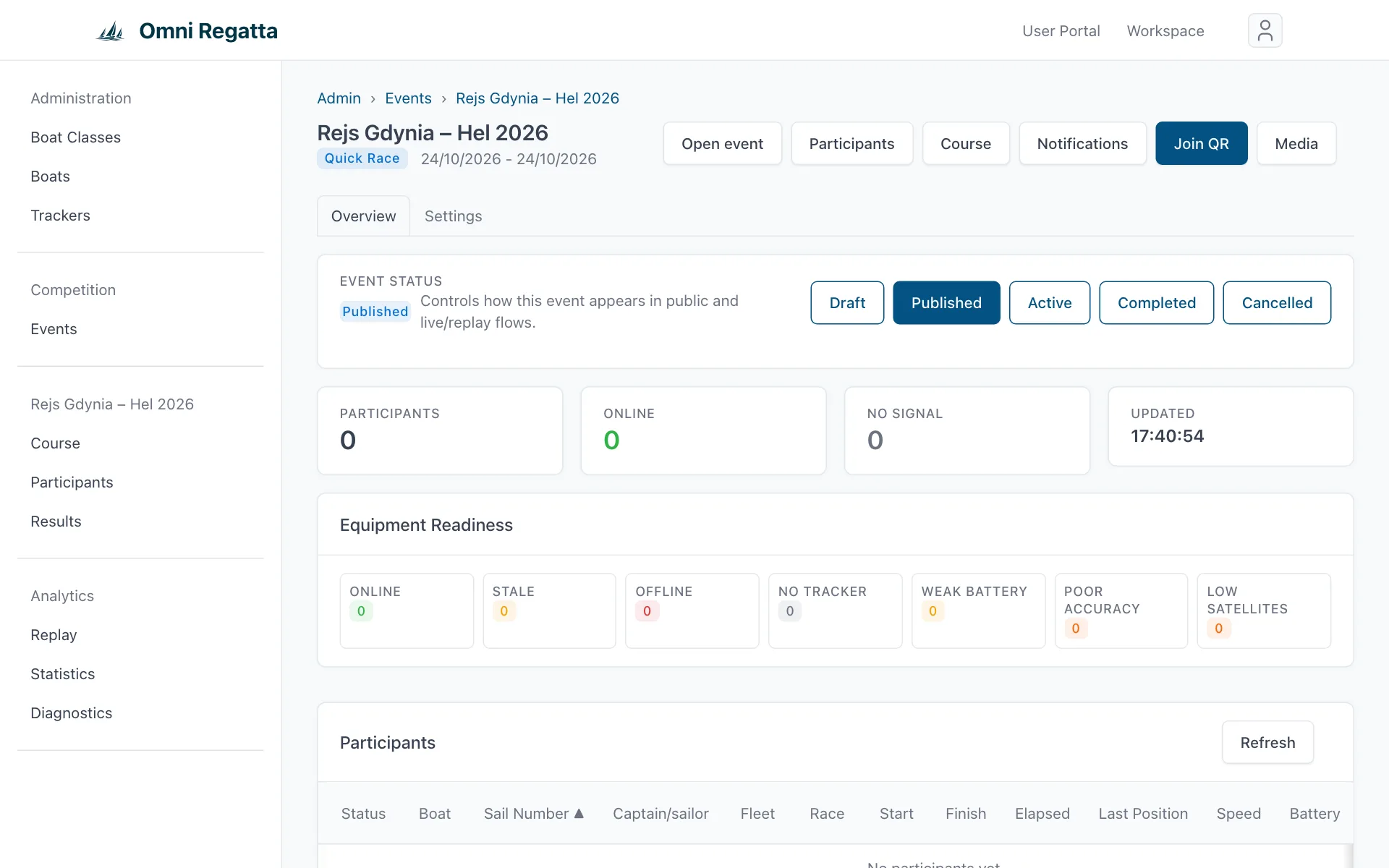
After saving, the event dashboard opens. Along the top are Open event (the public page), Participants, Course, Notifications, Join QR and Media. Below are the event status, participant counters and the list of boats.
- Set the course. Click Course and add a start line, a finish line and the marks to round (details under Course). For a point-to-point passage, a start and a finish are enough.
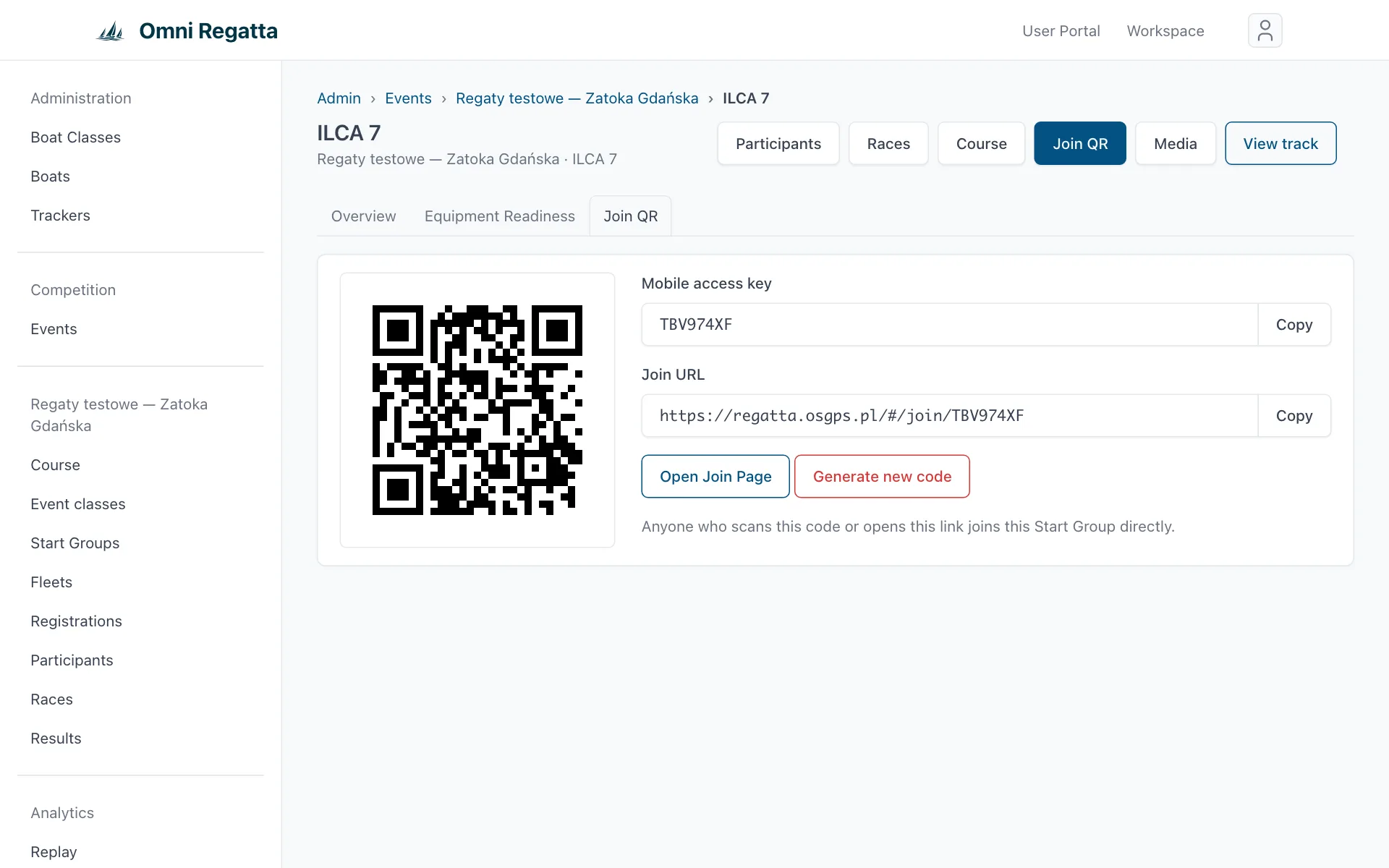
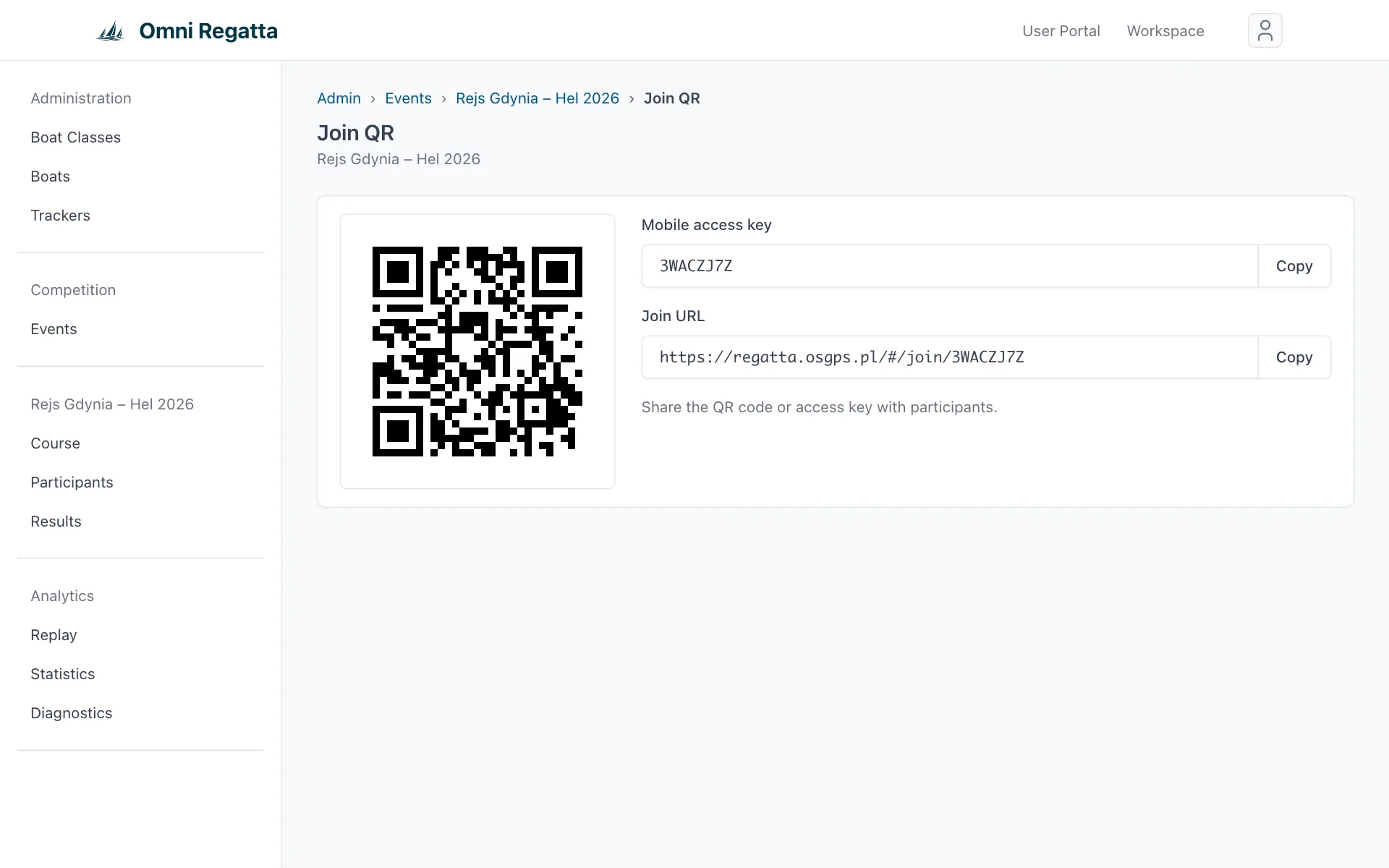
- Share the QR code. Click Join QR. Crews scan the code with Race Recorder or type the Mobile access key into it. Print the code, send it in a message or show it at the briefing. Copy copies the key or the link.
- Turn on alerts. Under Notifications, enable the email for a tracker that stops reporting (see During the race).
- Check the list. Every boat that joins appears in the dashboard's Participants table. Ask crews to join and start tracking while still in the harbour, so you can see who is reporting.
- Set the status to Active on race day, and to Completed afterwards.
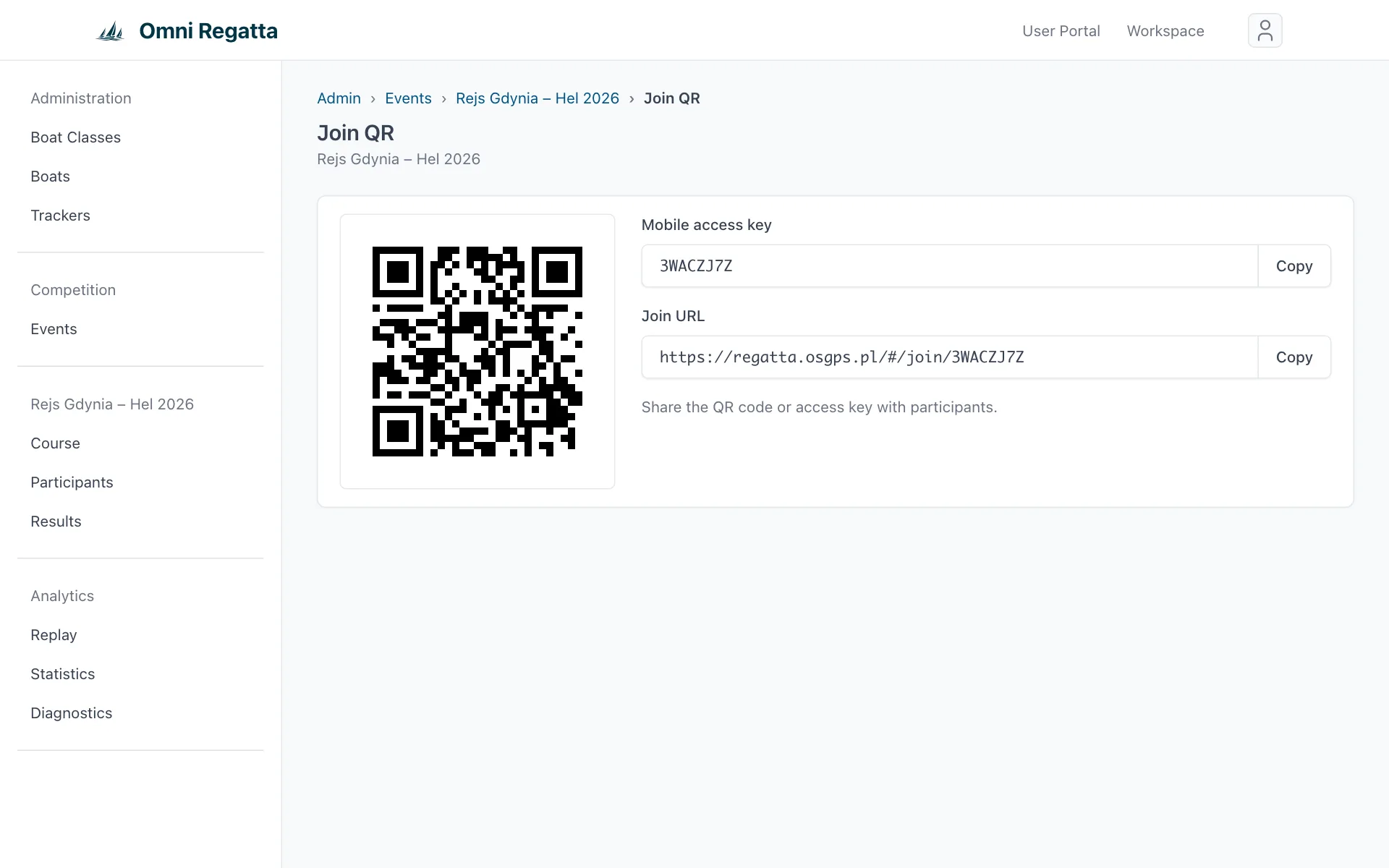
Tip: hand out the Quick start guide together with the QR code. It has the App Store and Google Play codes and fits on one A4 page.
6. Full regatta
A regatta is organised as event → start groups → races. A start group is usually one boat class (e.g. ILCA 7, Optimist) that starts together and has its own course and ranking.
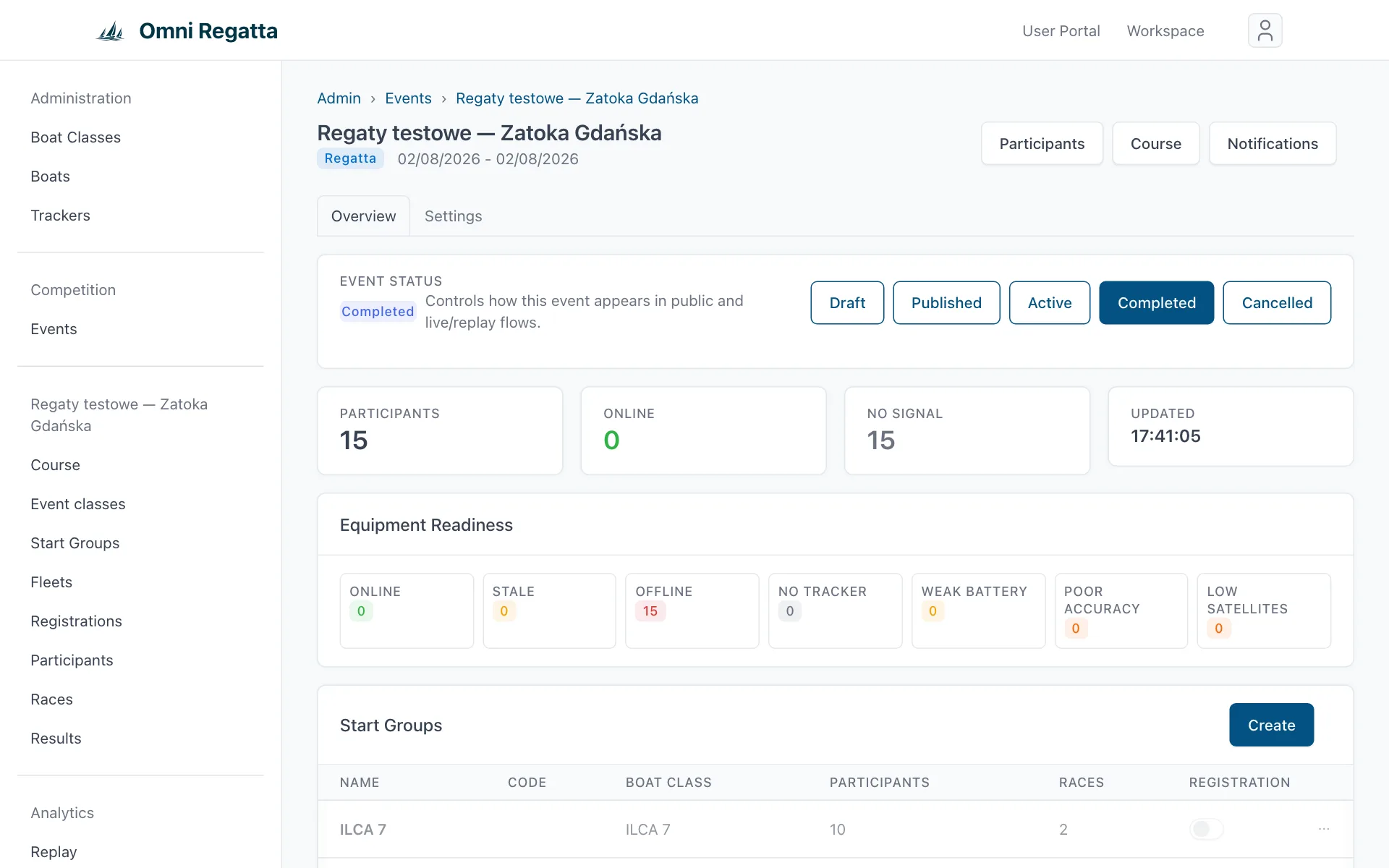
- Create start groups. On the event dashboard, in the Start Groups section, click Create. Pick the boat class and a name, and tick Registration if sailors should join by themselves. Event classes fills in automatically.
- Add races. In the Races menu click Create, pick the start group, enter a name and number, and set the start and end time and the status.
- Set the course for each start group (Course menu, Scope field).
- Collect participants. Open the start group and its Join QR tab. Each group has its own code, so a sailor lands in the right class. Boats with hardware trackers are added by hand (see Participants and trackers).
- After racing, check and correct the results in the Results menu.
The Fleets and Registrations menu items are supporting views that a typical regatta doesn't need.
7. Course
The course is used for timing (crossing the start and finish lines), distance to the next mark and detecting mark roundings. Open it with Course on the event dashboard.
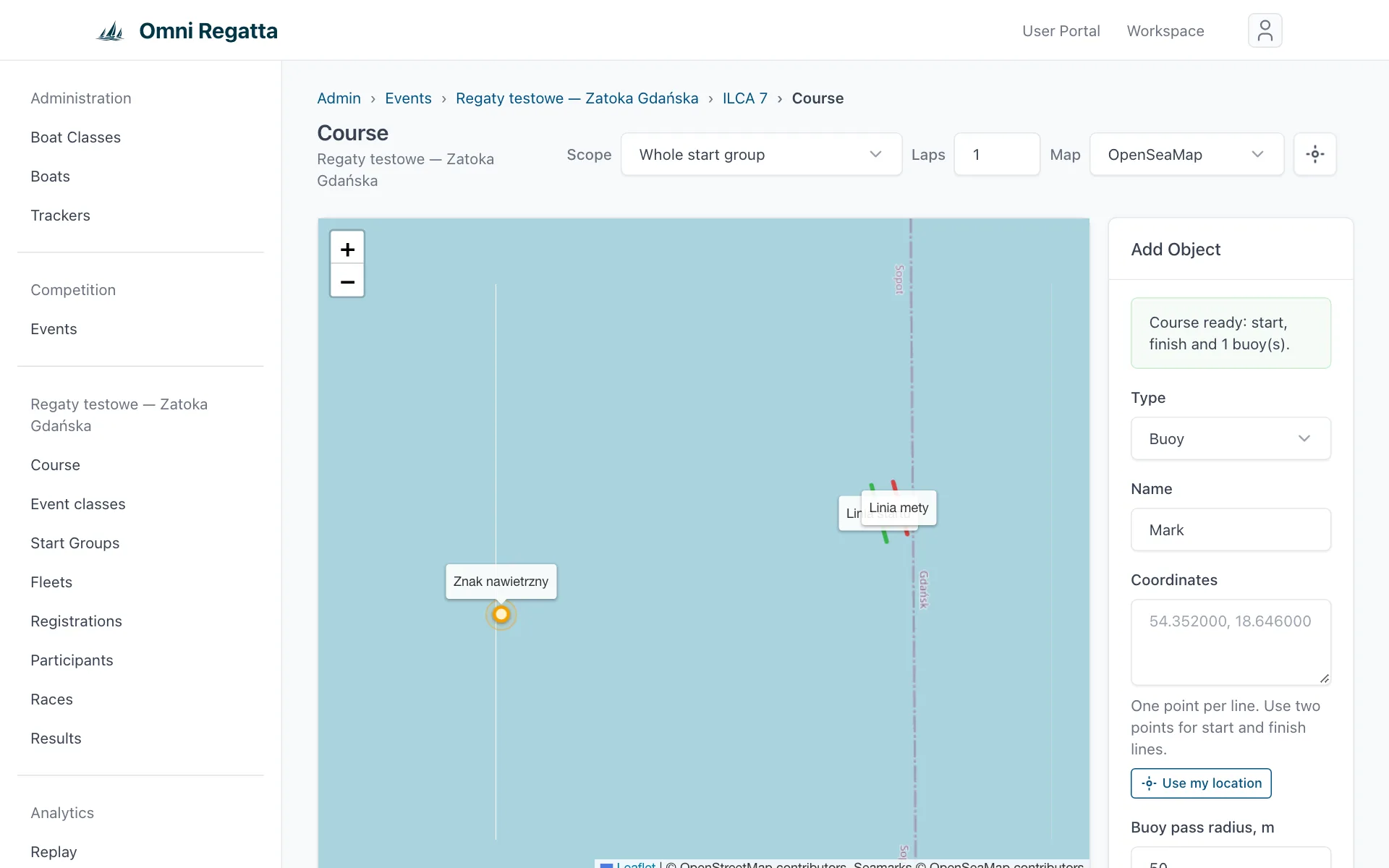
- In the Add Object panel pick a Type: Buoy, Gate, Start line or Finish line, and enter a name such as “Mark 1”.
- Click the map: one point for a buoy, two points (both ends) for a line. Instead of clicking, you can type coordinates into Coordinates, one point per line, e.g.
54.520000, 18.560000, and press Apply coordinates. - For buoys, set the Buoy pass radius, m: how close a boat has to get for the mark to count as rounded.
- Click Save. Once the course is complete you'll see Course ready: start, finish and … buoy(s).
Laps sets the number of laps, and Map switches the base map (BHMW charts, satellite and more).
Setting the course from the water. A race officer on a RIB can open the Workspace on a phone, choose the event in the Course setup mode tile and press Use my location at each mark. GPS accuracy is shown. If it's worse than a few metres, wait a moment and try again.
8. Participants and trackers
Participants with a phone
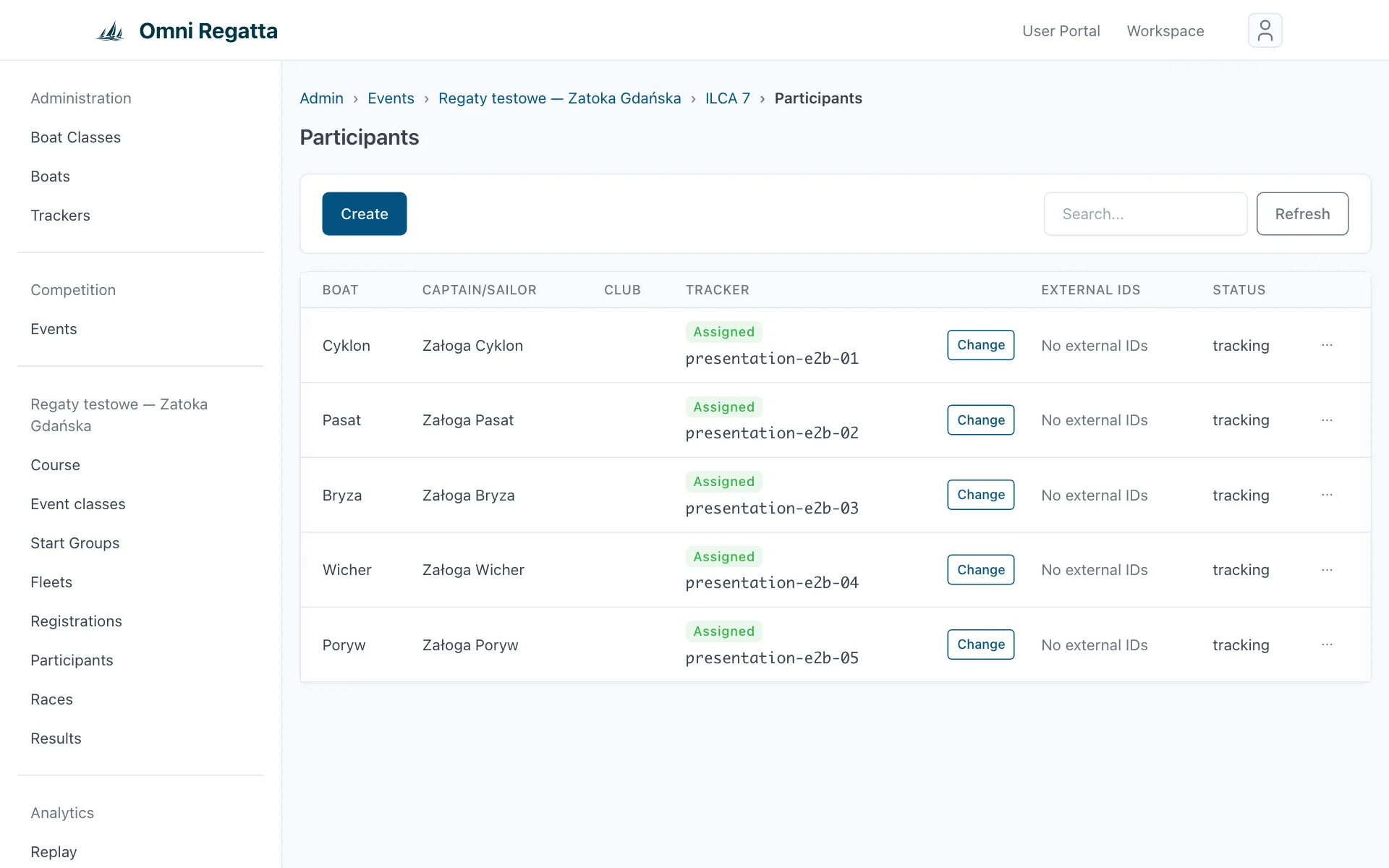
A sailor who joins with the QR code in Race Recorder appears in the list automatically, with their phone as the tracker. There's nothing to do. The crews' guide is on the Participant page.
Co-skipper, crew and club
In the participant's ⋯ menu choose Edit. Next to the skipper you can enter a Co-skipper, the Crew (one name per line) and the Club; for the club we suggest names entered before. Skipper and co-skipper appear in the results as “Skipper / Co-skipper”, the club in its own column, and the whole crew in the boat panel on the map and in the results PDF. If the event hides sailors' names, crew and club are hidden too.
Hardware trackers
- In the Trackers menu click Create, enter the device's Identifier / IMEI and pick its type (Teltonika, Queclink GL320 MG). The tracker has to send its data to the Omni Regatta server. If you're doing this for the first time, write to us and we'll help you configure the device.
- In the Participants menu add the boat with Create, or pick an existing one.
- Write to us (support@osgps.pl) which tracker goes on which boat: trackers are assigned by a system administrator. Once assigned, the tracker shows in the participant's row.
Note: moving a tracker to another boat during an event asks for confirmation. From then on its positions go to the new boat and the old boat's track ends.
9. During the race
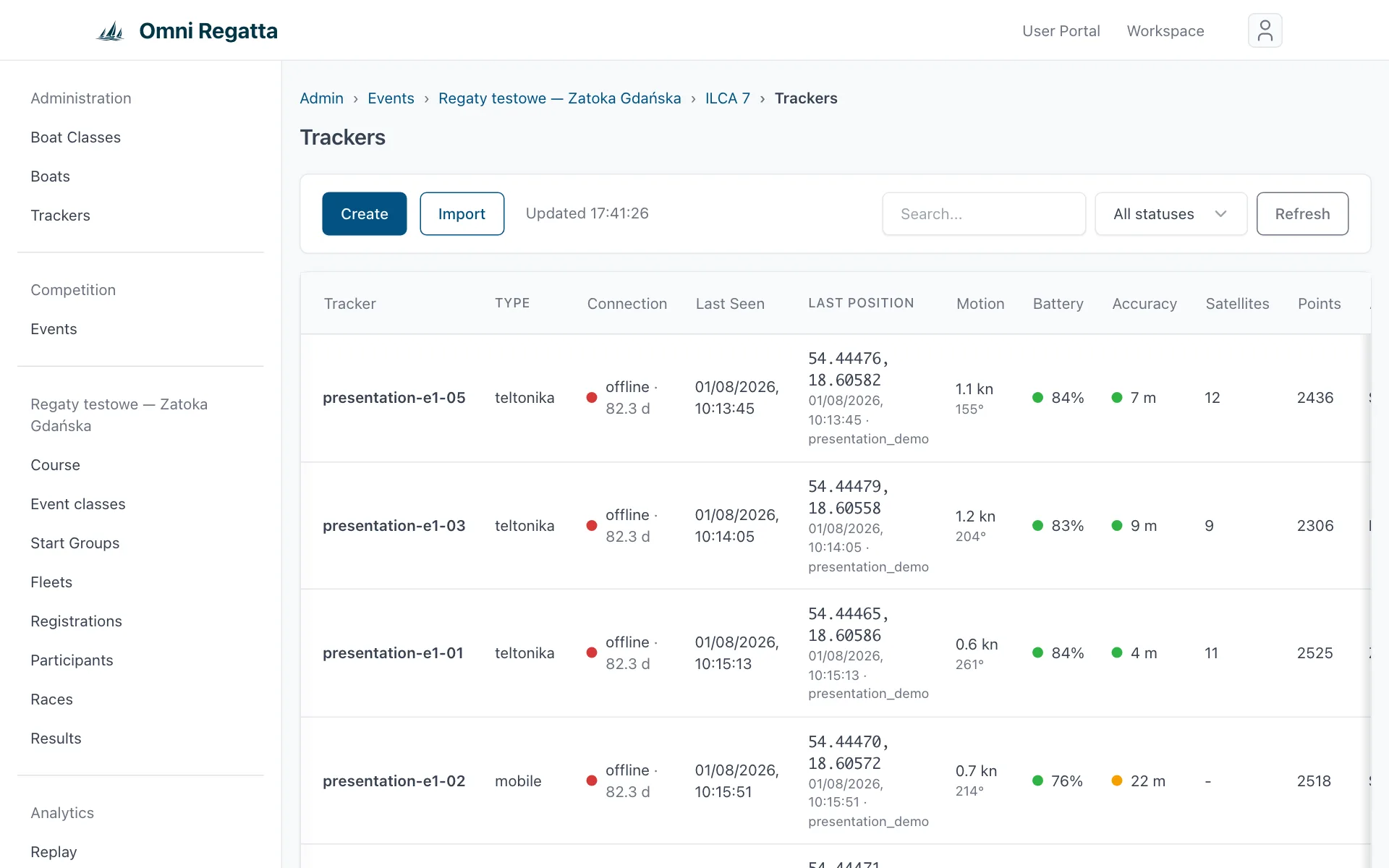
The event dashboard shows, live:
- Counters: participants, how many are reporting (Online) and how many aren't (No Signal).
- Equipment Readiness: trackers online, stale or offline, boats without a tracker, weak battery, poor GPS accuracy, low satellites.
- The participant list with last position, speed, start and finish time.
Open event opens the live map, the same view spectators see (described on the Spectator page).
Email alerts: tracker offline
- On the event dashboard click Notifications.
- Turn on Email me when a boat's tracker stops reporting and set after how many minutes without a position a boat counts as offline.
- Enter the recipients, one address per line (up to 10), e.g. the race officer and the safety boat.
- Click Save, then Send test email to check that messages get through.
Alerts run while the event is published or active and within its dates. You get one email per offline episode. Boats that have finished and boats that never reported are skipped.
This is not a safety system. A missing signal usually means a flat phone or no coverage, but an alert can arrive late or not at all. It doesn't replace VHF or the regatta's safety procedures.
10. After the race
- Set the status to Completed. The event moves to the History tab on the public site.
- Replay is publicly available straight away. On the event's Settings tab you can narrow the replay window (Replay From / Replay To), e.g. to leave out the sail back to the harbour.
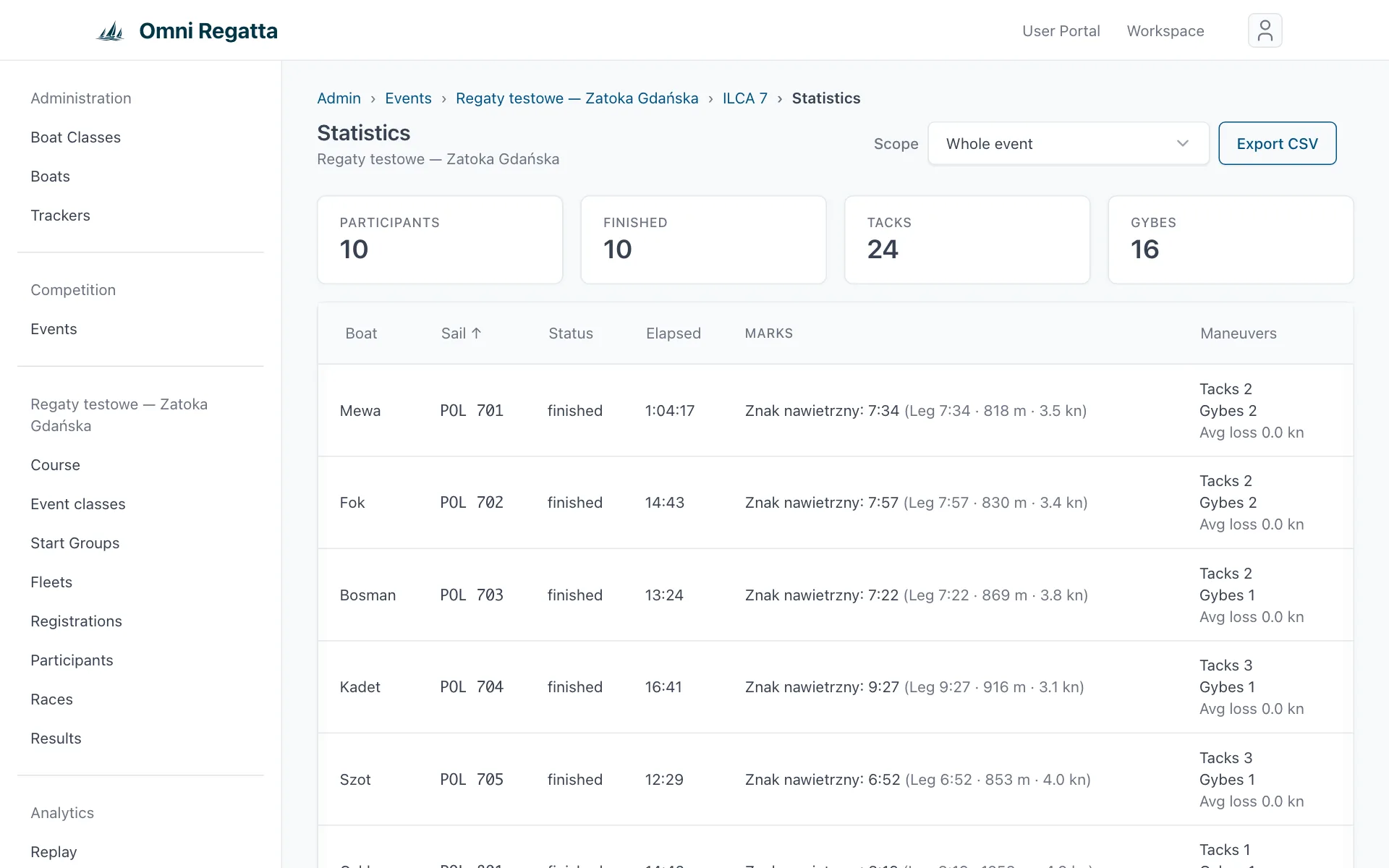
- Statistics (Statistics menu) show leg times, distance, speeds, manoeuvres and charts for each boat. Click a participant for the details. When the course has a start and a finish line, only the race counts: from crossing the start to the finish (including a finish typed in Results); a retired boat (RET/DNF) without a finish has no statistics.
- Results: the Results menu. In a regatta you correct places and statuses in each race (e.g. DNF, DSQ). In a quick race you can set each boat's status (RET, DNF, DNS, DSQ), type a finish time when the tracker missed the line, add a time penalty and a note for the sheet. Corrections are marked with * in the results. The public page has a Results PDF button.
- Handicap: on the event's Settings tab (and per class in a regatta) choose the system (ORC, IRC, KWR, PHRF or custom) and the method: time on time (ToT), where the rating is a time multiplier, or time on distance (ToD), where the rating is seconds per mile (e.g. APH) and the distance is the official one or, if you leave it empty, the length of the drawn route. On the participant (Edit, in a quick race also in Results) enter both ratings from the certificate: Rating ToT (e.g. ORC ToT All Purpose) and Rating ToD (e.g. ORC APH); the one matching the chosen method counts, so you can switch the method without retyping ratings. With ToD, corrected time is relative to the lowest-rated boat (its corrected time equals its elapsed time). Results, CSV and PDF show corrected time, delta and the course legs.
- Classification groups (quick race): when one race with a common start has groups scored differently (e.g. ORC by time on distance and KWR by time on time), add the groups in Results → Classification groups: name, system, method (ToD/ToT) and, for ToD, the official distance (empty = route length). Put a boat in a group with the Group list in its row, or check several and use Move to group. Each group gets its own table, places and delta on the public page, in the CSV and in the PDF. Boats without a group are in a No group table with the event's handicap. Without groups everything works as before: one table.
- Challenges (e.g. the Świnoujście – Gdynia course record): create a challenge in the Challenges menu, then choose it in the Challenge field of every quick race that should count (Events → Edit). The challenge table collects every finish of those races, fastest first: boat, skipper, start, finish, time on the course (with the time penalty, no handicap), distance sailed from start to finish, average speed and top speed. The courses may differ (e.g. both directions). The challenge's public page (… → Public page, also linked from the event page; the challenge's races carry its badge in the event list, and every public challenge is in the Challenges tab of the home page) counts only public races; private ones show in the table in the admin (… → Results).
- Media: add photos from the event with Media. They appear in a gallery on the event page.
11. Participant privacy
As the organizer you entrust us with processing your participants' data (see the Terms of Service and the Privacy Policy). In practice:
- For junior regattas, turn on Hide sailor names from the public.
- A participant who wants to disappear from the archive can be anonymised in the Participants menu (the … menu in the row → Anonymize). The track stays, the name goes.
- Positions are only collected while a participant has tracking switched on in the app, or from a tracker assigned to the boat.