 Omni Regatta · Help
Participant guide: Race Recorder
Race Recorder turns your phone into the boat's GPS tracker. Your position shows on the live regatta map, and afterwards in the replay and statistics. You don't need an account, just the organizer's code.
In short: install the app → scan the QR code in the app → enter your boat details → Join event → Start tracking → allow location “Always”. Printable version: Quick start.
1. Install
The app is free:
- iPhone: App Store, Omni Regatta Race Recorder
- Android: Google Play, Race Recorder


2. Join an event
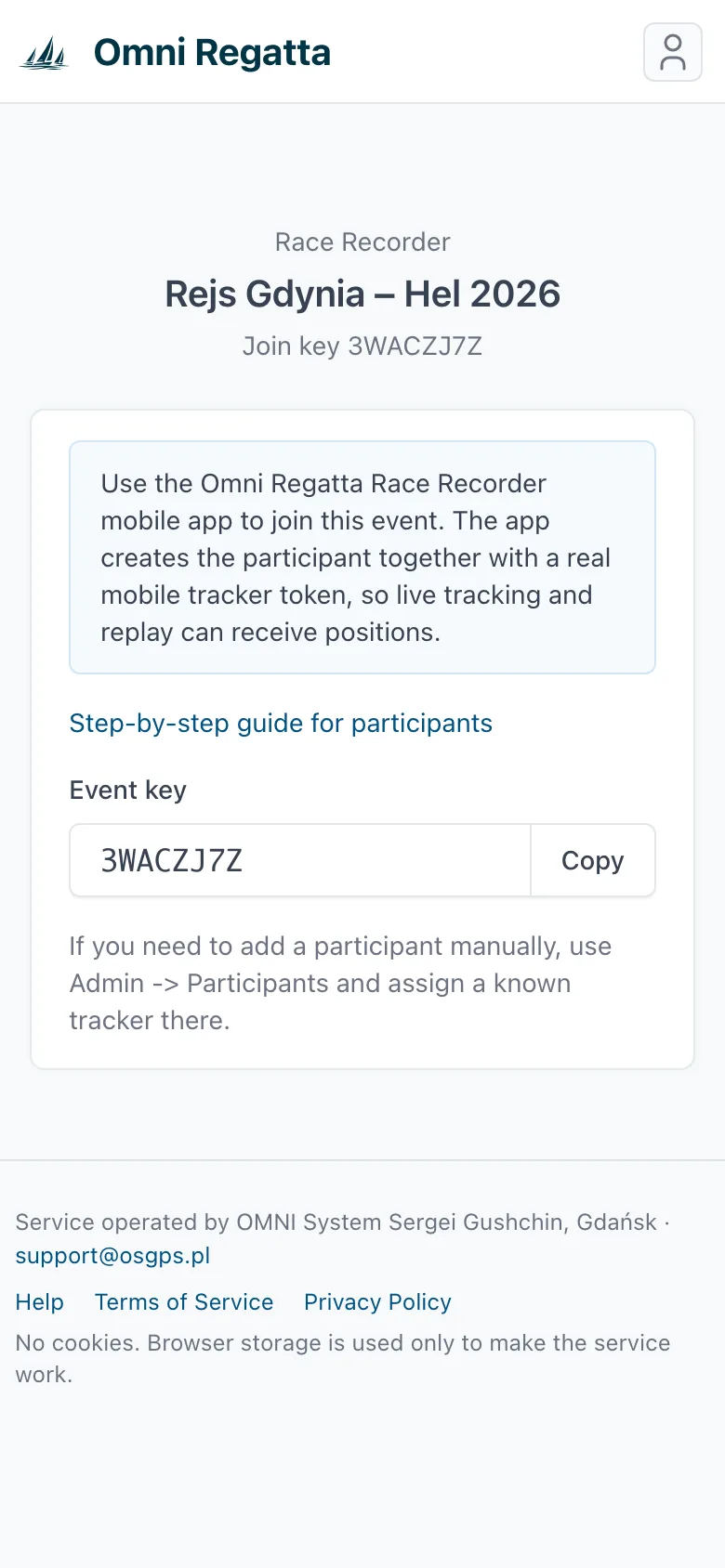
The organizer gives you a QR code or an event key, a few letters and digits such as 3WACZJ7Z. At regattas with several classes each start group has its own code. Use your class's code.
- Open Race Recorder. On the Tracking tab press Scan QR and point the camera at the code. Or type the key into Event key and press Find event.
- The app shows the event's name and dates. Check that it's the right one.
- Fill in the Participant form:
- Boat name: leave it empty for small-class boats without a name,
- Prefix and Sail number: the country code (POL by default) and the number on your sail, digits only,
- Sailor: the helm's or skipper's full name,
- Notes: optional, e.g. your club.
- Press Join event. You're now on the organizer's participant list.
Scan the code in the app, not with the phone's camera. The system camera opens a web page instead of the app. No harm done: the page shows the event key, which you can type into Event key in Race Recorder.
The app remembers your details on the Profile tab, so you don't have to type them again for the next regatta.
3. Location permissions
Wrong location settings are the most common cause of gaps in a track. Set them once, before leaving the harbour.
iPhone
- The first time you press Start tracking, iOS asks for location access. Choose Allow While Using App (the full “Always” option is only offered in Settings).
- Open Settings → Race Recorder → Location and choose Always.
- On the same screen turn on Precise Location.
- Go back to the app and press Start tracking again.
Why “Always”? With “While Using”, iOS can suspend the app entirely after a while once the phone is locked in a pocket. On a long passage that means hours without positions. Newer versions of the app remind you of this and won't start tracking without “Always”.
Android
- The first time you press Start tracking, allow location (While using the app is enough) and leave Precise location on.
- If the phone asks about notifications, allow them. While tracking, the app shows a persistent Race Recorder is tracking notification, which keeps Android from shutting it down in the background. Don't dismiss it.
- Turn off battery optimisation for the app: Settings → Apps → Race Recorder → Battery → Unrestricted. This matters most on Samsung, Xiaomi, Huawei and OnePlus phones, which put apps to sleep aggressively.
If something is missing, the app tells you, e.g. Location is turned off, Precise location required or "Always" location access required, with a button that opens the right settings.
4. Tracking
- After joining, press Start tracking and confirm with Start.
- Below the boat details you see your current position, speed and course. Tracking is active. means everything works.
- You can lock the phone and put it away. The app keeps running in the background.
The counters at the top:
- sent: positions delivered to the server,
- queued: positions stored on the phone, waiting for coverage,
- skipped: positions dropped, e.g. with a very poor GPS fix.
My statistics opens your statistics in the browser: times, speeds, manoeuvres.
10 minutes after your finish your track stops being public (live map, replay, downloads), even if you forget to stop tracking. Once the event is completed, this also applies to boats without a finish. The organizer still sees the positions; stop tracking when you are back anyway, to save the battery.
Start tracking while still in the harbour, a quarter of an hour before the start. The organizer sees you're reporting, and the GPS has time to settle.
5. No coverage
At sea, coverage often drops out. That's fine: the app stores positions on the phone (about two days of sailing) and sends them automatically when the network is back. On the live map the boat “freezes” while there's no coverage, but the replay track will be complete.
To send the backlog straight away, e.g. back in the harbour, press Send queued positions.
6. Finishing
- After the finish press Stop tracking and confirm. The phone stops sending positions.
- If queued isn't zero, wait for coverage or press Send queued positions.
- The exit icon at the top right (Leave event) disconnects you from the event. It stays on the Events tab so you can come back to it.
Access to an event expires after 30 days without uploaded positions. The app then asks you to rejoin with the same code.
7. App tabs
- Tracking
- Joining an event, starting and stopping tracking, position counters.
- Events
- Saved events. Tap one to return to it, e.g. on the second day of a regatta. Connect new event joins another.
- Profile
- Your details: boat, number, helm. After a change press Save profile. To show the new details in the current event as well, also press Update current event.
8. Tips for the water
- Charge the phone to 100% and bring a power bank. Tracking drains the battery faster than usual, especially with weak coverage.
- Keep the phone high and away from metal, e.g. in a waterproof case in the cockpit, not in a steel locker or at the bottom of a bag below deck.
- One phone per boat. If two crew members join separately, the boat shows up on the map twice.
- Don't swipe the app away from the recent apps list. On an iPhone that stops tracking.
- Airplane mode stops sending, but not recording. Positions go out once it's off.
Race Recorder is not a safety device. It doesn't replace VHF, an EPIRB or AIS and has no SOS function.